Amazon Barcode Types Explained: UPC, EAN, FNSKU, and More
Amazon uses several types of barcodes for different purposes—some for identifying products in the global retail system, others specific to Amazon's own fulfillment operations. Understanding which barcode you need and when to use it prevents costly mistakes like commingled inventory issues, listing errors, and shipment rejections.
This guide covers every barcode type you'll encounter as an Amazon seller, when to use each one, and how they work together.
Barcode Categories Overview
Amazon barcodes fall into two main categories:
| Category | Purpose | Examples |
|---|---|---|
| Product Identification | Identify products universally across retail | UPC, EAN, ISBN |
| Amazon Internal | Track inventory within Amazon's fulfillment network | FNSKU, X00 labels, LPN |
Let's examine each barcode type in detail.

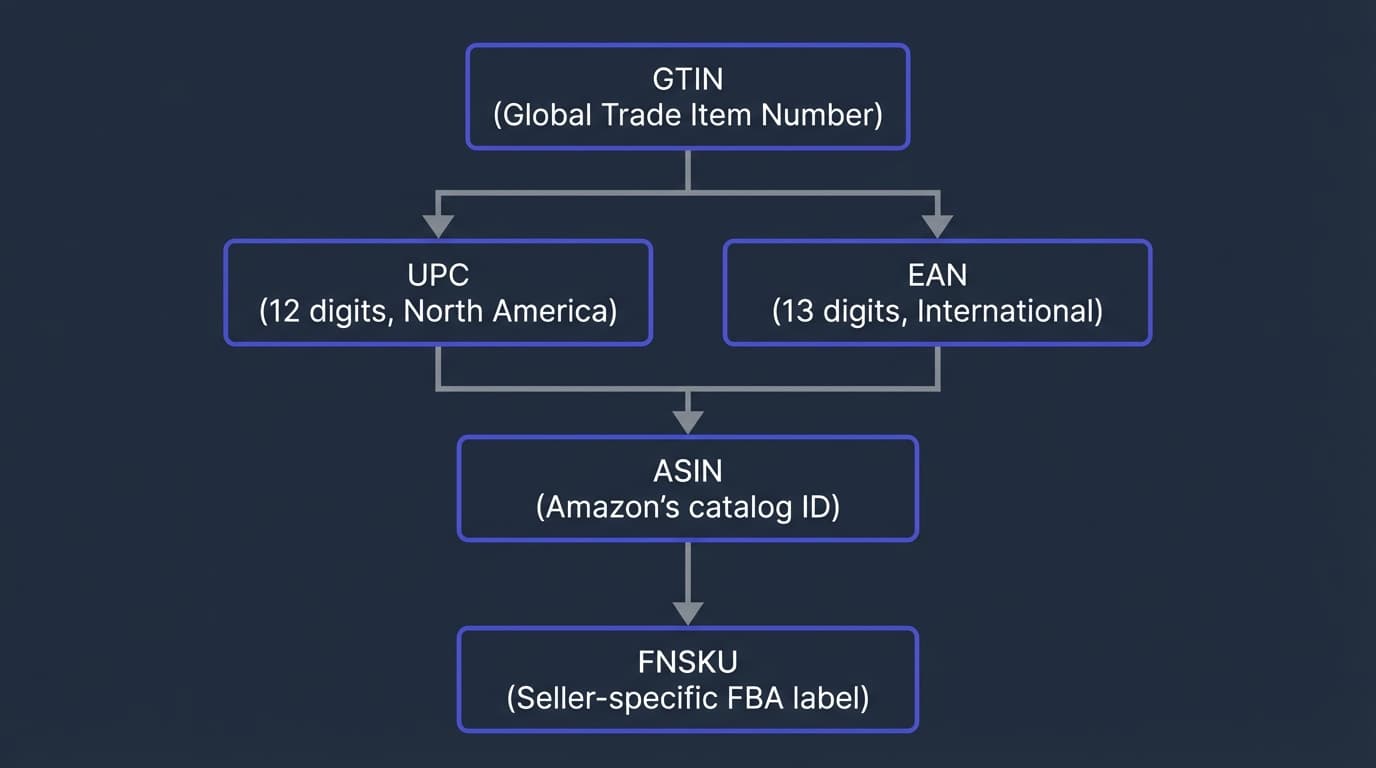
Product Identification Barcodes
These are the barcodes manufacturers put on products. They identify what the product is—regardless of who sells it or where it's sold.
UPC (Universal Product Code)
The standard barcode in the United States and Canada. If you buy a product at any store and scan it, you're scanning a UPC.
- Format: 12 numeric digits
- Example: 012345678905
- Region: North America
- Issued by: GS1 (the global standards organization)
On Amazon: UPCs are used to create and match product listings. When you enter a UPC, Amazon matches your offer to the existing product page (or creates a new one).
EAN (European Article Number)
The international equivalent of the UPC. Standard in Europe, Asia, and most of the world outside North America.
- Format: 13 numeric digits (also EAN-8 with 8 digits)
- Example: 5901234123457
- Region: International
- Relationship to UPC: A UPC can be converted to EAN by adding a leading zero
On Amazon: EANs work the same as UPCs for listing products. Amazon's global catalog accepts both. Use our EAN to ASIN converter to look up international products.
ISBN (International Standard Book Number)
The product identifier specifically for books. On Amazon, the ISBN-10 often serves as the ASIN for books.
- Format: 10 or 13 digits
- ISBN-10 example: 0134685997
- ISBN-13 example: 978-0134685991
- Used for: Books, audiobooks, e-books
On Amazon: For books, the ISBN-10 typically becomes the ASIN. Use our ISBN to ASIN converter to look up book listings in bulk.
When to Use Product Identification Barcodes
- Listing new products: Provide UPC/EAN when creating Amazon listings
- Matching existing products: Search by UPC/EAN to find the right ASIN
- Supplier list analysis: Convert UPCs to ASINs for product research
- Commingled FBA: Using manufacturer barcodes for FBA inventory
Amazon Internal Barcodes
These barcodes are specific to Amazon's systems. They help Amazon track inventory through their fulfillment network.
FNSKU (Fulfillment Network Stock Keeping Unit)
The most important Amazon-specific barcode for FBA sellers. An FNSKU uniquely identifies your inventory in Amazon's warehouses.
- Format: Starts with "X00" followed by alphanumeric characters
- Example: X002ABC123
- Unique to: Your seller account + specific product
Key FNSKU Characteristics
- Seller-specific: Two sellers with the same product have different FNSKUs
- ASIN-linked: Each FNSKU corresponds to one ASIN in your inventory
- Account-bound: Your FNSKUs won't work with another seller's account
Why FNSKUs Exist
FNSKUs allow Amazon to track whose inventory is whose. When a customer orders from you, Amazon picks units labeled with your FNSKU—ensuring you get credit for the sale and the customer gets your inventory.
Critical concept: Without FNSKU labels, your inventory could be "commingled" with other sellers' inventory (see the commingling section below).
How to Get Your FNSKU
- Go to Seller Central → Inventory → Manage FBA Inventory
- Find your product
- Click "Print item labels" from the Actions menu
- Download and print the FNSKU barcode labels
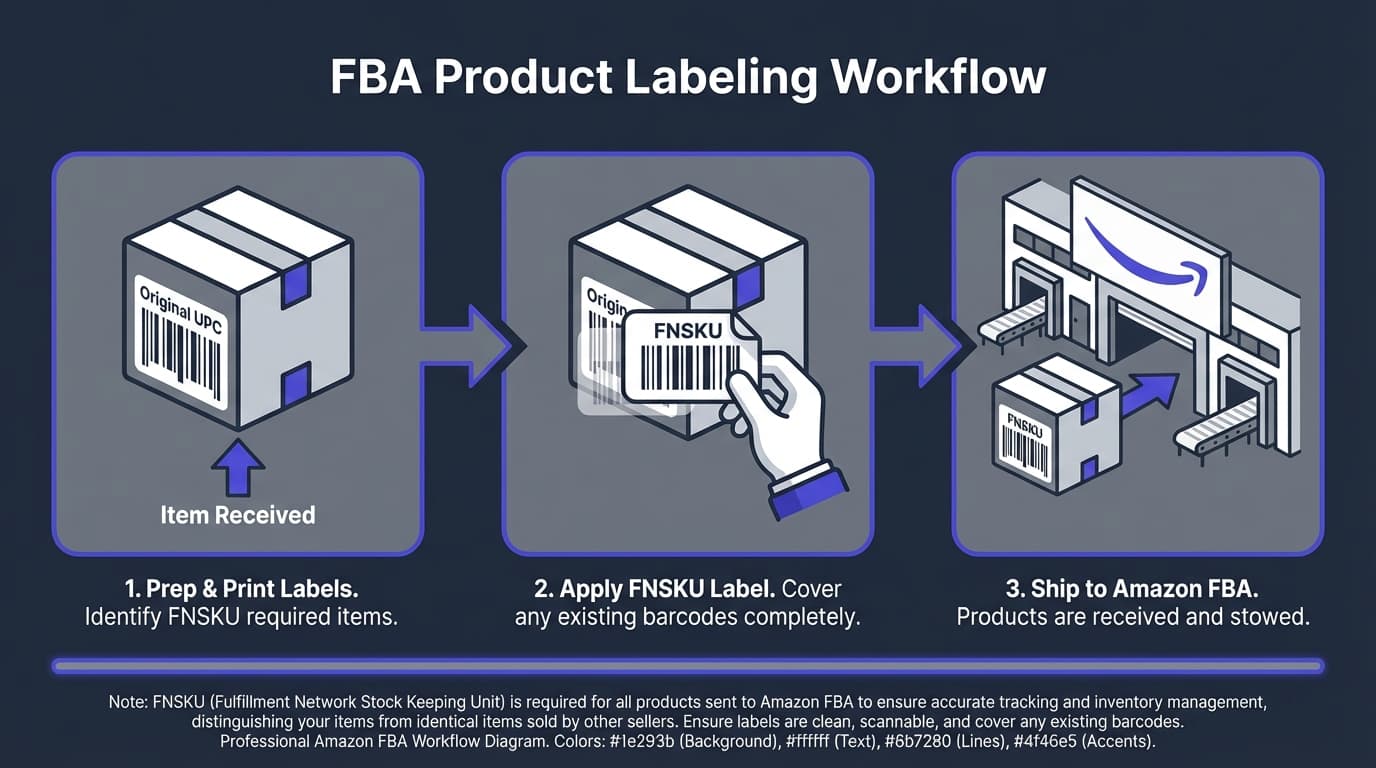
You'll apply these labels to each unit before shipping to FBA.

Amazon Barcode (X00 Labels)
Sometimes called "Amazon barcode" or just "X00 labels," this term often refers to FNSKUs. Amazon uses this naming in Seller Central when asking which barcode type to use.
In settings: When you see "Amazon barcode" vs "Manufacturer barcode," Amazon barcode means FNSKU.
LPN (License Plate Number)
Amazon's internal tracking code for shipments and packages—not for individual products.
- Used for: Tracking packages through fulfillment centers
- Seller interaction: You rarely deal with LPNs directly
Transparency Codes
A separate anti-counterfeiting program by Amazon. Brands enrolled in Transparency place unique 2D codes on each unit.
- Format: Unique QR-like code per unit
- Purpose: Verify authenticity before shipment to customers
- Requirement: Only for products enrolled in Transparency program by the brand
If you sell products requiring Transparency codes, you must obtain them from the brand or authorized distributor.
Manufacturer Barcode vs Amazon Barcode (FNSKU)
One of the most important decisions FBA sellers make: should you use the manufacturer's barcode or Amazon's FNSKU labels?
Using Manufacturer Barcode (Commingled Inventory)
How it works: You send products with their original UPC/EAN barcodes. Amazon mixes your inventory with other sellers' inventory of the same product.
Pros:
- No labeling required—save time and money
- Faster prep process
- Lower prep costs
Cons:
- Your customers might receive another seller's inventory
- If another seller sends counterfeit or damaged goods, your customers could receive them
- You could get blamed for quality issues you didn't cause
- Negative reviews and account health risks
Using Amazon Barcode (FNSKU)
How it works: You apply FNSKU labels to each unit. Amazon keeps your inventory separate from other sellers.
Pros:
- Your customers always receive your inventory
- Full control over product quality
- No risk of receiving complaints for other sellers' problems
- Better protection for your account health
Cons:
- Requires labeling every unit
- Additional prep time and cost ($0.15-0.30 per unit for labels)
Our Recommendation
Always use FNSKU labels. The small labeling cost is worth the protection. Commingled inventory problems can result in account suspensions, negative reviews, and A-to-Z claims—all because of another seller's bad inventory.


Can You Create a Barcode from an ASIN?
This is a common question: "I have an ASIN—can I create a barcode from it?"
The answer: You can create a barcode image from an ASIN, but it's not useful for most purposes.
What Works
- Internal tracking: You could create a barcode with the ASIN for your own warehouse management
- Quick lookup: Scan to quickly pull up the Amazon product page
What Doesn't Work
- Amazon FBA labels: ASIN barcodes are not valid FBA labels—you need FNSKUs
- Product identification: ASINs aren't recognized outside Amazon
- Retail scanning: Stores won't recognize ASIN barcodes
What You Probably Want Instead
If you're asking about ASIN barcodes, you likely need:
- FNSKU labels for FBA shipments (get from Seller Central)
- UPC lookup to find the product's retail barcode (check product page or use conversion tools)
Which Barcode Do You Need?
Here's a decision guide based on your situation:
Creating a New Amazon Listing
You need: UPC or EAN (or GTIN exemption)
- Get from GS1 for your own products
- Use the manufacturer's barcode for wholesale products
- Apply for exemption if product never had a barcode
Listing an Existing Product
You need: ASIN (or UPC to find the ASIN)
- Search Amazon by UPC to find the product
- Use UPC to ASIN converter for bulk conversions
- Add your offer to the existing listing
Sending Inventory to FBA
You need: FNSKU labels
- Generate from Seller Central
- Apply to each unit before shipping
- Ensure barcode is scannable (not wrinkled, smudged, or covered)
Analyzing Supplier Price Lists
For step-by-step methods, see our complete UPC to Amazon lookup guide.
You have: UPCs from supplier
You need: ASINs to check Amazon pricing and profitability
- Convert UPCs to ASINs using bulk conversion tools
- Analyze Amazon data for each converted ASIN
Common Barcode Errors and How to Fix Them
"Barcode does not match product"
Cause: The UPC you entered is already associated with a different product in Amazon's catalog.
Solutions:
- Verify you have the correct UPC from the product packaging
- Check if the existing listing is actually your product (variations, etc.)
- If there's a catalog error, open a case with Amazon Seller Support
"Invalid barcode format"
Cause: The barcode doesn't match expected UPC/EAN format.
Solutions:
- Check digit count (UPC = 12, EAN = 13)
- Verify no letters were accidentally included (should be all numbers)
- Ensure check digit is correct
"FNSKU already in use"
Cause: You're trying to use an FNSKU that's already assigned to another product in your inventory.
Solutions:
- Each product needs its own FNSKU
- Download fresh labels from Seller Central for the correct product
- Don't reuse labels from old shipments
FBA Shipment Rejected for Labeling
Common causes:
- Labels not scannable (printed too small, smudged, damaged)
- Labels covering important product information
- Wrong label type (using UPC when FNSKU required)
- Missing labels on some units
Prevention:
- Print labels at proper size (1" x 2" minimum)
- Use quality labels that scan cleanly
- Test scan a few labels before shipping
- Cover existing barcodes to prevent scanning errors
Barcode Best Practices for Amazon Sellers
For FBA Prep
- Always use FNSKU labels—avoid commingling risks
- Cover existing barcodes—prevents wrong product being scanned
- Use quality labels—thermal labels are more durable than inkjet
- Test scan before shipping—catch issues before Amazon does
For Product Research
- Convert UPCs to ASINs—essential for analyzing supplier lists
- Verify matches manually—especially for high-value products
- Check multiple sources—UPC databases can have errors
For Listing Products
- Use the manufacturer's UPC—for existing branded products
- Get GS1 barcodes—for your own branded products
- Apply for exemptions properly—when eligible
Frequently Asked Questions
Can I use the same barcode for multiple products?
No. Each unique product needs its own UPC/EAN. Variations (different sizes, colors) each need separate barcodes. Using one barcode for multiple products causes catalog errors.
Do I need to buy barcodes for wholesale products?
No. When reselling existing branded products, you use the manufacturer's barcode that's already on the product. You only need to buy barcodes when creating new products.
What's the difference between FNSKU and SKU?
FNSKU is assigned by Amazon for FBA tracking. SKU (Stock Keeping Unit) is your own internal code—you create it for your inventory management. They serve different purposes.
Can I use UPC barcodes from eBay sellers?
Those are usually "recycled" barcodes from resellers. They may work but aren't officially assigned to you, creating potential issues. For serious selling, use GS1 barcodes.
Do FBM sellers need FNSKU labels?
No. FNSKU is only for FBA (Fulfilled by Amazon). If you fulfill orders yourself (FBM), you'll use your own internal systems for tracking inventory.
What about product restrictions?
Some products require approval before you can list them, regardless of barcode type. See our Amazon Gated Brands & Categories Guide for details.
How do I find the UPC from an Amazon listing?
Scroll to the "Product Information" section of the Amazon product page. The UPC is usually listed there. For bulk lookups, reverse ASIN-to-UPC tools can help.
Next Steps
- Free UPC to ASIN Converter — Convert North American barcodes to Amazon ASINs
- Free EAN to ASIN Converter — Convert international barcodes to Amazon ASINs
- Free ISBN to ASIN Converter — Look up book ASINs in bulk
- What Is an ASIN? — Understand Amazon's product identifiers
- What Is a GTIN? — Learn about global barcode standards
- FBA Prep Center Database — Find services to handle your labeling
Need to convert supplier barcodes to Amazon ASINs?
Start Free with RocketSource →
Convert up to 50,000 UPCs per week, analyze supplier price lists for profitability, and check product restrictions—no credit card required.